
Zapier
Connect Saturation to more than 9,000 apps through Zapier. Start Zaps from new projects, budget changes, purchase orders, transactions, documents and contacts, or create records in Saturation from the tools your production already uses.
What the Saturation Zapier integration does
Zapier connects Saturation to more than 9,000 apps without code. Each automation, called a Zap, pairs a trigger with an action: something happens in one app, and Zapier does something in another. Saturation works on both sides of that. A new project, a budget change, a purchase order moving to approved or a receipt being uploaded can start a Zap, and forms, inboxes and e-signature tools can create contacts, purchase orders, transactions and documents in Saturation.
The integration covers projects, budgets, purchase orders, transactions, documents and contacts, with 9 triggers, 7 actions and 7 searches, and more than 30 ready-made templates to start from.
Triggers
A trigger starts a Zap when something happens in Saturation.
- New Project: a project is created in the workspace.
- Updated Budget: budget data changes, including lines, phases, tags and rate packs.
- New Purchase Order: a purchase order is created.
- Updated Purchase Order: a purchase order changes status, such as pending, approved, rejected, actualizing, paid or void.
- New Transaction: a new actual arrives from a bank feed, a card or manual entry.
- Updated Transaction: a transaction is modified.
- New Document: a receipt, invoice or contract is uploaded.
- Updated Document: a document is linked to a transaction, purchase order, contact or project.
- New Contact: a vendor, crew member or company is added to the workspace.
Actions
An action does something in Saturation as a step in a Zap.
- Create Contact: add a vendor, crew member or company.
- Create Purchase Order: create a purchase order, with optional line items.
- Change Purchase Order Status: cancel a submission, link actuals, mark it paid or void it.
- Create Transaction: enter a transaction on a project.
- Update Transaction: change a transaction's assignments, status or notes.
- Upload Document: upload a file, optionally linked to a transaction, purchase order or contact.
- Link Document: attach a receipt or document to a transaction, purchase order, budget, contact or project.
Searches
A search looks up Saturation data so a later step in the same Zap can use it.
- Find Budget Lines: line-item budget detail with account codes and phase breakdowns.
- Find Budget Summary: a project's budget topsheet with computed totals per phase.
- Find Purchase Order: by number, status, vendor or project.
- Find Transaction: actuals across the workspace, by several filters.
- Find Document: by project, name or status.
- Find Document Extraction: the vendor, amount, date and line items Saturation read from a document.
- Find Contact: by name, company or email.
Build a Zap here
The panel below runs on Zapier. Describe a workflow in plain words, such as "When a purchase order is approved in Saturation, post it to a Slack channel", and Zapier drafts the Zap. Or search for the app you already use to see the Saturation templates that connect to it.
Popular templates
These are the Zaps production teams turn on first: project folders in Google Drive, a Slack post when a project starts, contacts synced to Google Contacts, signed Docusign envelopes filed as documents, purchase order approvals tracked in Google Sheets and a weekly budget snapshot. How each one works is in the launch post.
Use it from ChatGPT or Claude
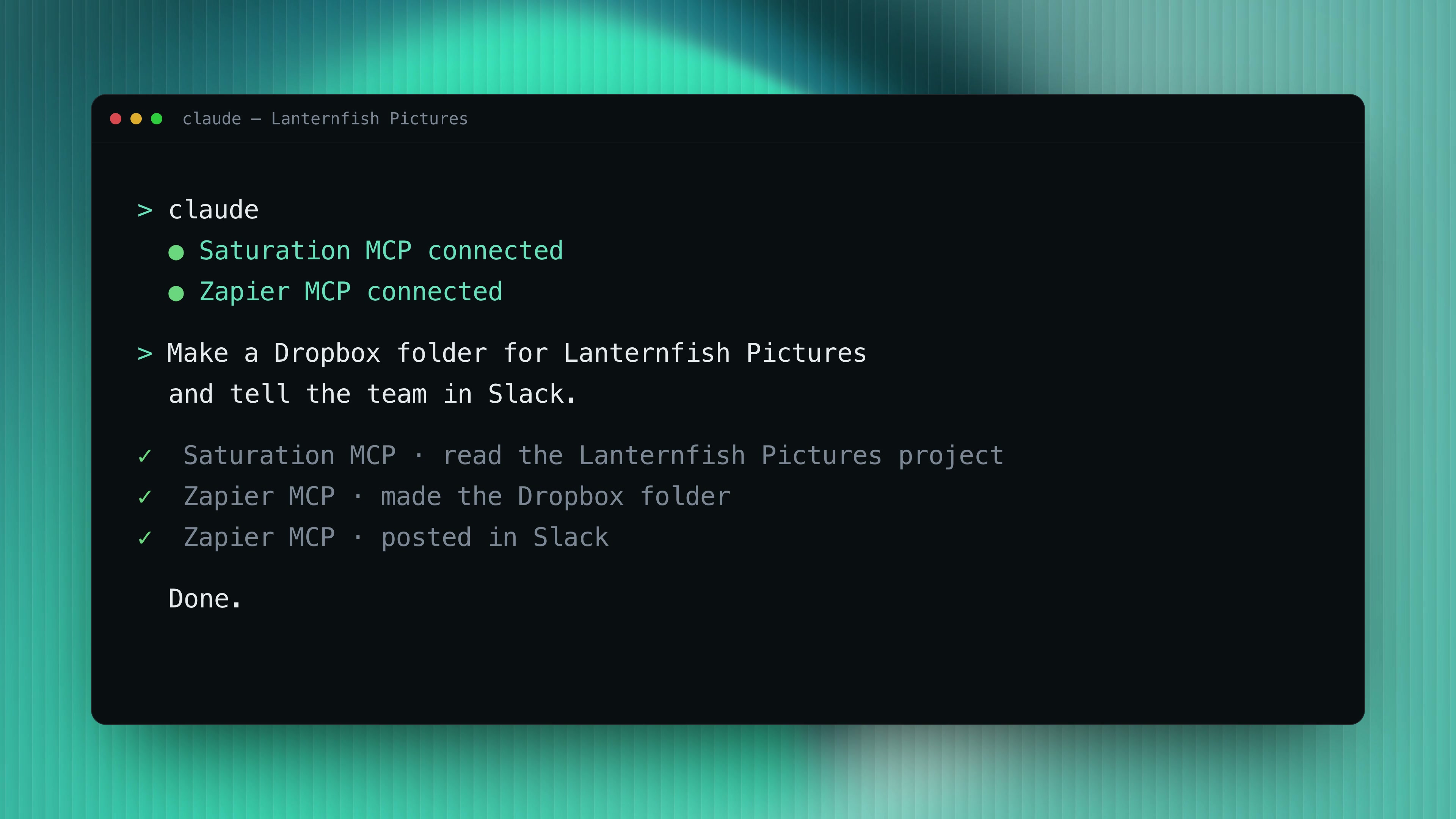
Connect Saturation MCP and Zapier MCP to an AI assistant such as ChatGPT or Claude, and it can read your Saturation data and act in your other apps in one request: for example, making a Dropbox folder for a project and telling the team in Slack.
How to set it up
- Turn on Zapier in Saturation. In your workspace, open Integrations and turn on Zapier.
- Start a Zap. Pick a template on Saturation's Zapier page, describe one to Zapier Copilot, or choose Create Zap and search for Saturation.
- Connect your Saturation account when Zapier asks, and choose the workspace.
- Test the trigger. Zapier pulls a recent example from Saturation so you can see the data.
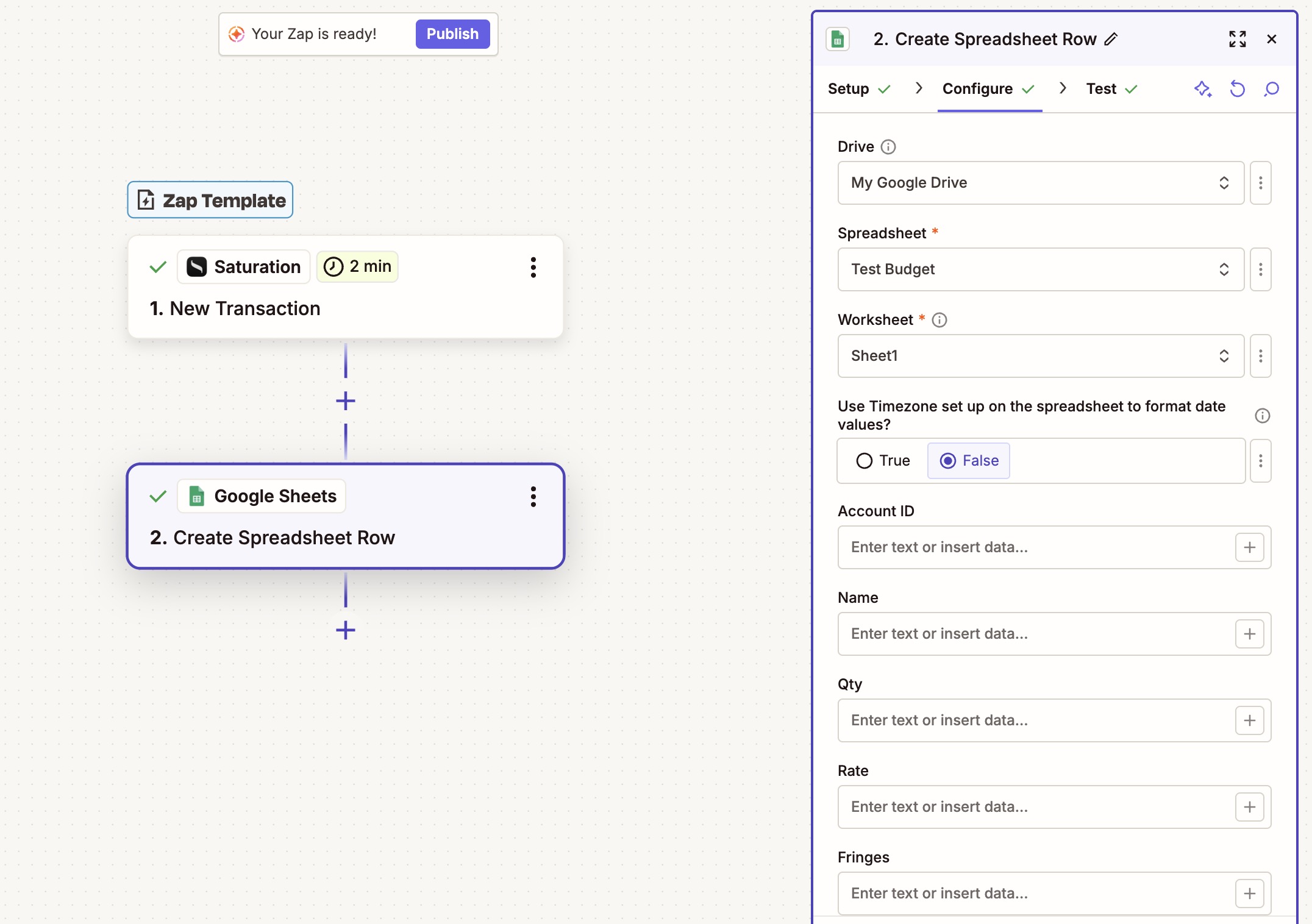
- Map the fields from Saturation into the other app.
- Test and publish. Check the result in the other app, then turn the Zap on.
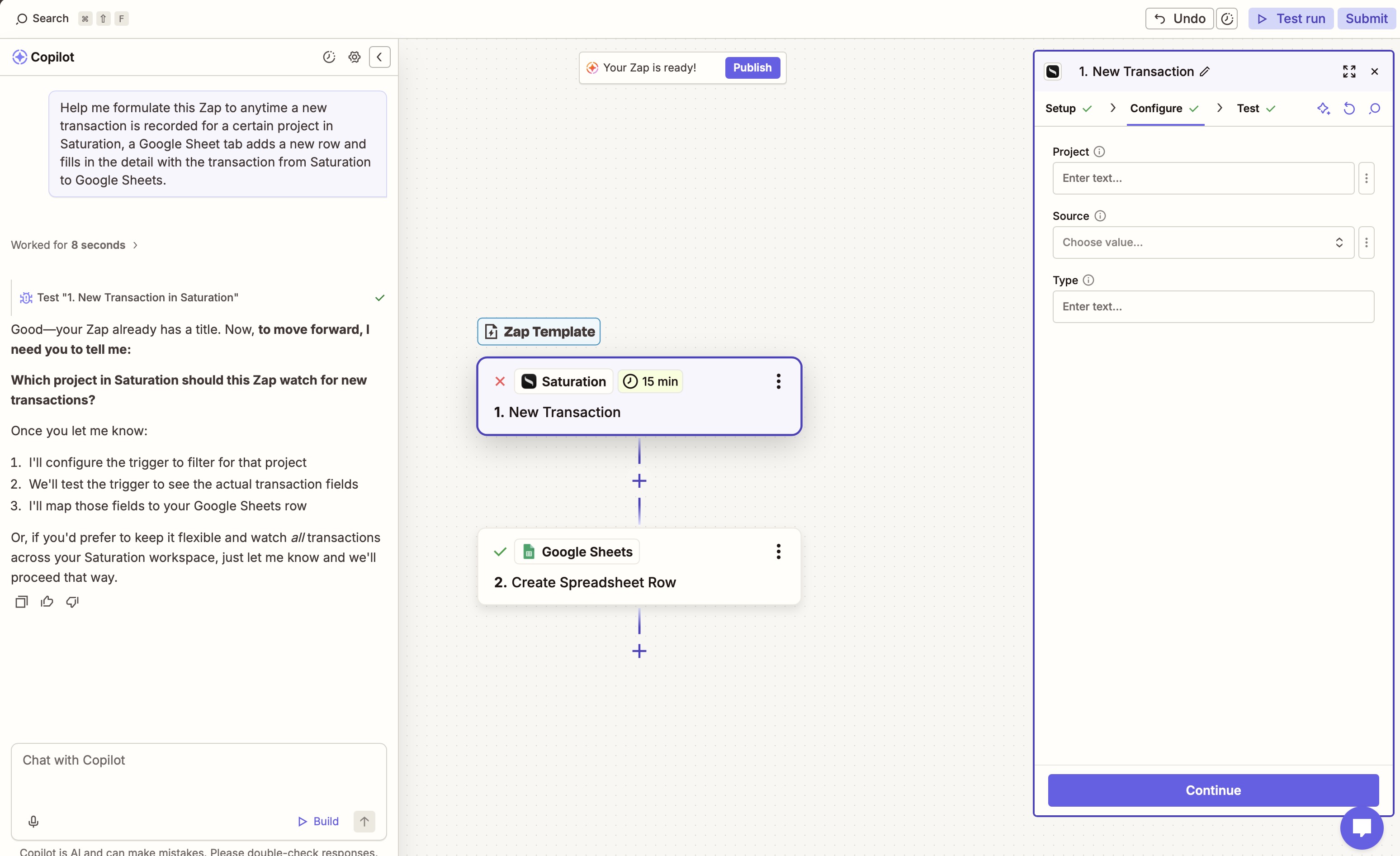
Field mapping shows real data from a test record, so you can see exactly what will arrive before anything is turned on.
Requirements
- Saturation on the Pro plan or higher.
- A Zapier account. Zapier's free plan runs two-step Zaps with a monthly task allowance; multi-step Zaps and higher volumes need a paid Zapier plan. See Zapier's plan details for current limits.
Learn more
- Saturation Is Now on Zapier: the launch post, with six Zaps walked through step by step.
- Saturation on Zapier: every Saturation template and app connection.
- All Saturation integrations.
Connect your tools
Saturation integrates with the tools your production team already uses.